
Prerequisite: The students to be exported must already be registered as exam participants in Jogustine, as course participants cannot be exported.
1. Exporting the students' list from Jogustine
Log into Jogustine (https://jogustine.uni-mainz.de), find the respective exam and its participants list.

Right above the participants list you'll find the button for export ("Exportieren").

Click it. You will then be shown the following, click "Liste herunterladen" (Download list).

Save the list as a text file (that's the default, no need to change anything).
Now you need to convert this file so Ilias will accept it.
2. Converting a .txt file from Jogustine into an Ilias-compatible format
Open Excel with an empty or no file. Go to “File > Open” to locate the .txt file you saved earlier.
If the .txt file is not displayed and cannot be selected for opening in Excel, change the file type filter in Excel from “All Excel Files” to “All Files” or “Text Files” in the dropdown next to “File Name.”

The Text Import Wizard will open.
Leave the default settings (they should look similiar to the following screenshots).


In the third and final Text Import Wizard window, click “Finish.”

Your file will now appear like this:

Now, choose one of the following ways to save the data:
-
- (preferred) A text file (*.txt) in the following format: Each line contains a matriculation number (or user name).
To use a text file for import: Select only the column containing the matriculation numbers and paste them into an empty txt file. Ensure that the matriculation numbers are listed vertically in the .txt file, without additional spaces. You can then use this txt file to import into Ilias.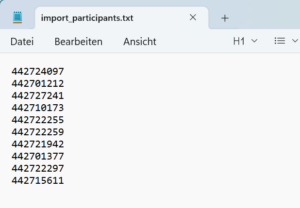
- An Excel file (*.xls, .xlsx) or a CSV file (.csv):
There are two options:
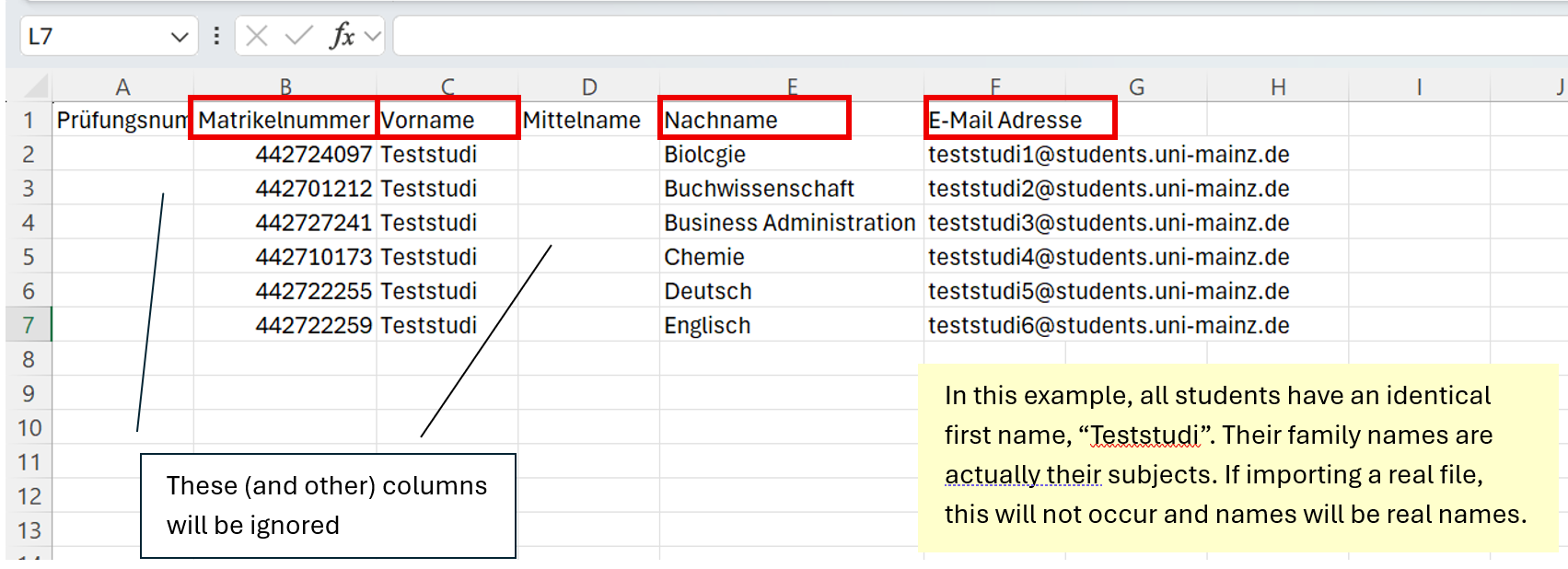
a) The table includes column headers: If the first row contains the exact column headers
Nachname, Vorname, Matrikelnummer and E-Mail Adresse
(Last Name, First Name, Matriculation Number, and Email Address - this needs to be in German!), the column order is irrelevant and will be automatically recognized. The headers must be named exactly as shown; otherwise an error message will appear.
The email address must not be omitted and must be added if missing. Additional columns will be ignored.
<!-- -->
-->
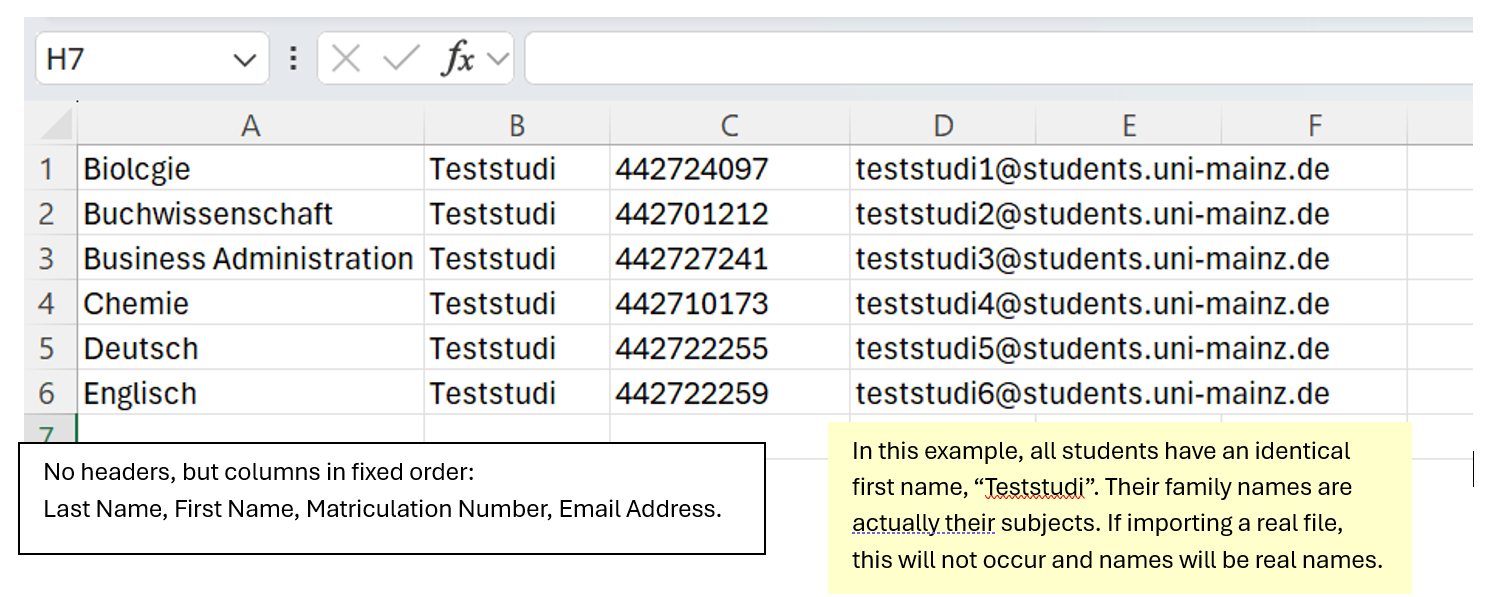
b) The table has no column headers: In this case, columns must be arranged in the correct order. The order of columns 1 to 4 must be:
Last Name, First Name, Matriculation Number, Email Address.
The first line line is the first user to be imported, so everything above must be deleted.
<!-- -->
-->
3. Import the file into the exam group or course
Finally, in Ilias, open the respective group or course (take care not to import into the exam directly!), click the Participants tab and import the file.
- (preferred) A text file (*.txt) in the following format: Each line contains a matriculation number (or user name).
 -->
--> -->
-->